Layer Tools
In this section, you will learn how to export layers and toggle footprint visibility, sort, and filters.
Exporting Layers
You can export layers in two different ways: XLSX and CSV.
XLSX
To export layers as XLSX, do the following:
- In a workspace page, click the + on the Layers Tools Menu.
The Create New dialog box is displayed.
-
In the Create New dialog box, select the Export XLSX option.
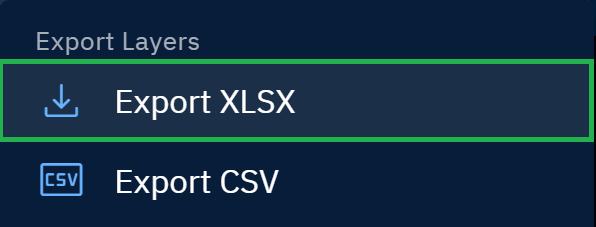
The platform successfully exports XLSX on your local computer.
CSV
To export layers as CSV, do the following:
- In a workspace page, click the + on the Layers Tools Menu.
The Create New dialog box is displayed.
- In the Create New dialog box, select the Export CSV option.
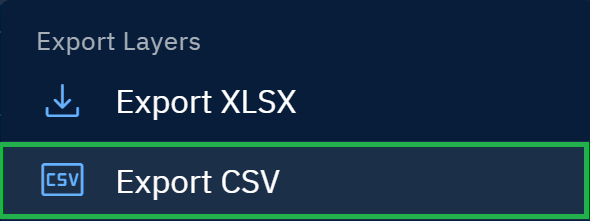
The platform successfully exports CSV on your local computer.
Toggling Footprint Visibility of Layer
As the name suggests you can turn on and turn off footprint visibility of layers in one, single click.
To toggle footprint visibility, do the following:
- In a workspace page, click the Toggle Footprint Visibility icon on the Layers Tools Menu in the following cases:
-
When you want to turn off the footprint visibility of multiple layers
-
When you want to turn on the footprint visibility of all the layers i(in the layers panel)
-
Sorting Layers
You can sort the layers in the Layers panel by ingestion date, acquisition date, and name of the layer.
By default, the latest or current layer is displayed first.
To sort layers, do the following:
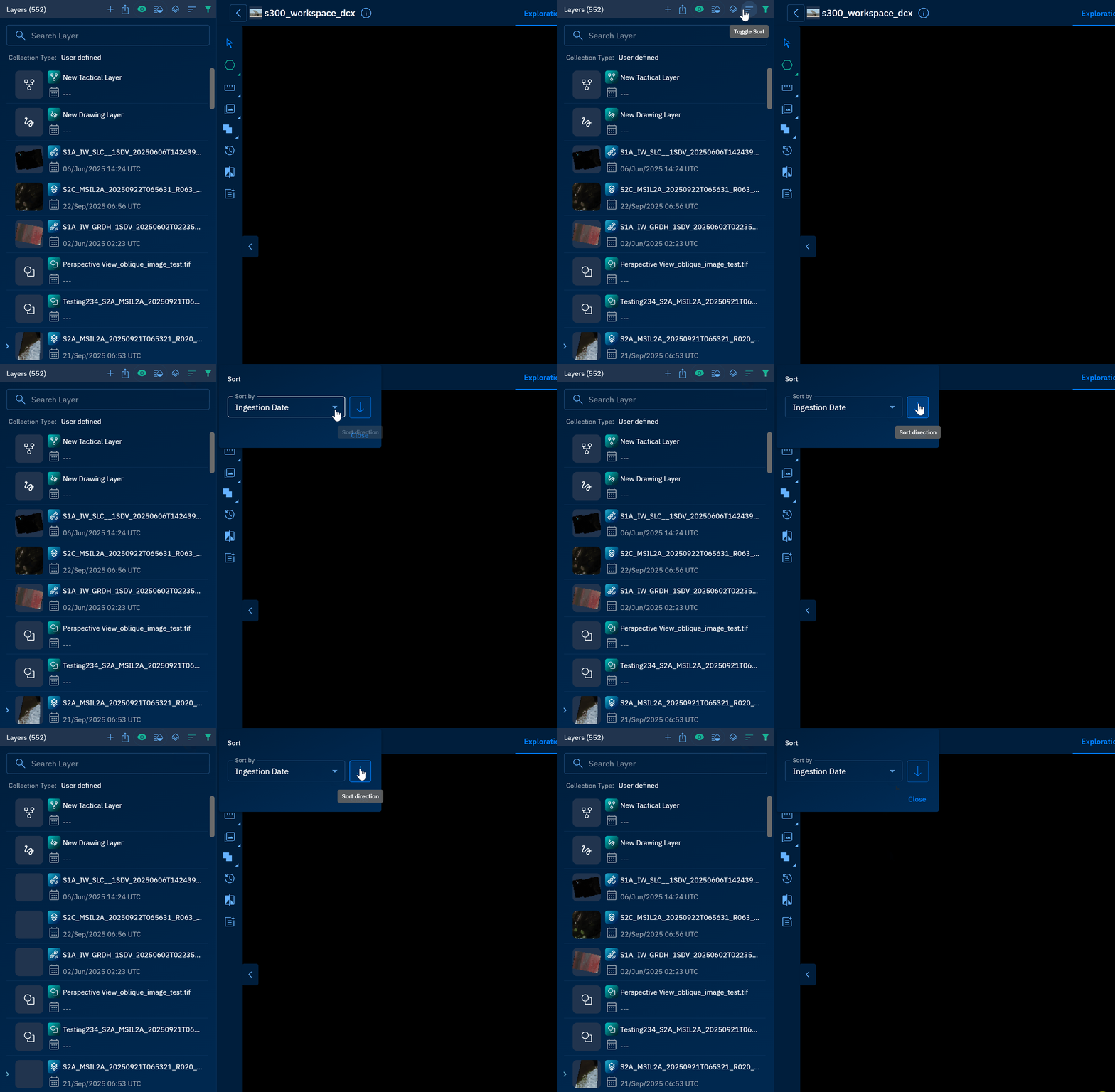
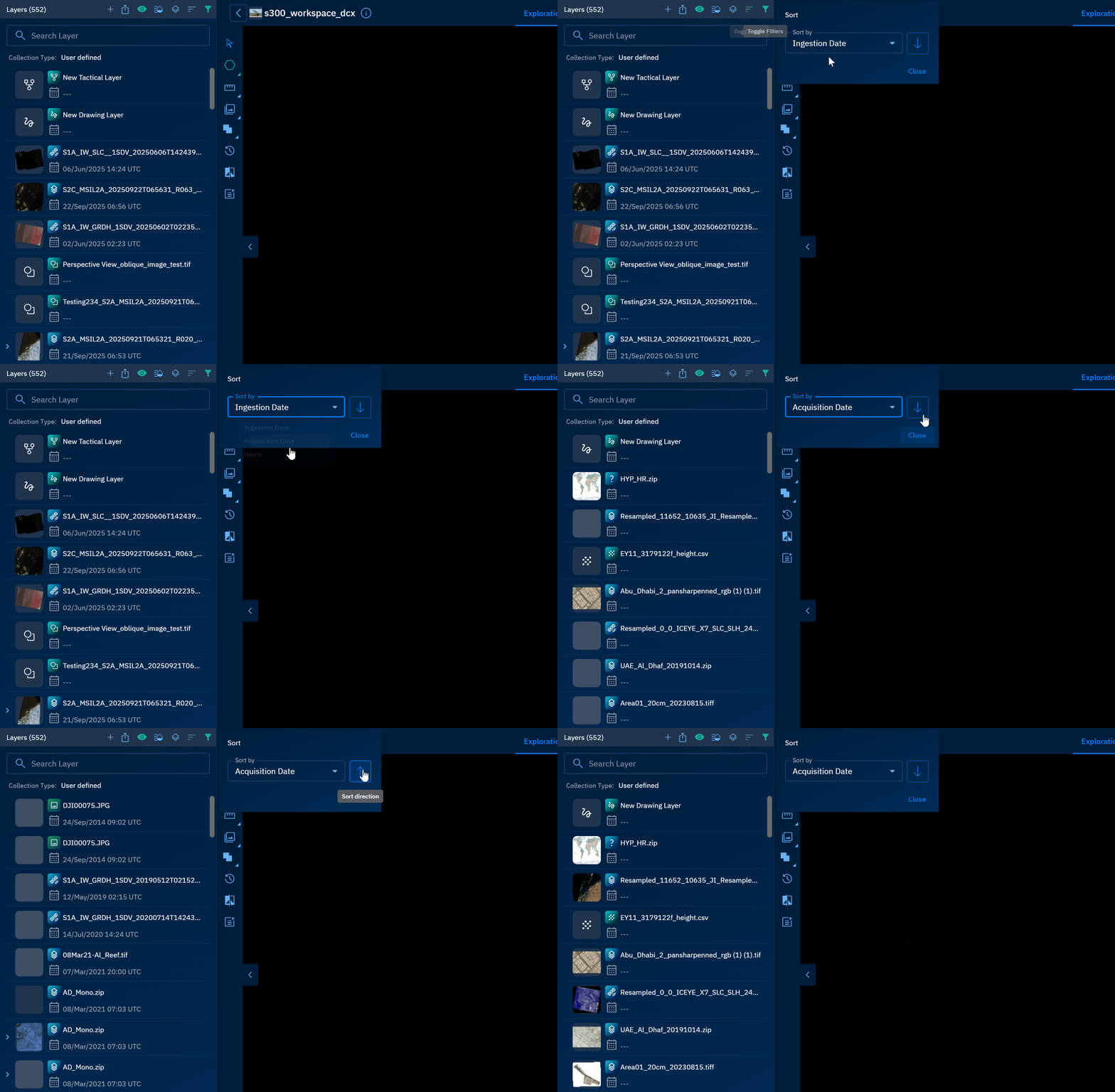
- In a workspace page, click the Toggle Sort icon and do one of the following:
-
Click the Ingestion Date option and then click the Sort Direction icon to sort layers by oldest ingestion date first
-
Click the Acquisition Date option and then click the Sort Direction icon to sort layers by oldest acquisition date first.
-
Click the Name and then click the Sort Direction icon to sort layers alphabetically.
-
Filtering Layers
You can use several filters to find a specific type of layer. Feel free to use an individual filter or combine multiple filters.
To filter layers, do the following:
- In a workspace page, click the Filter icon and select one or multiple filters to find a layer:
| # | Filter Option | Description | When to use |
|---|---|---|---|
| 1 | Acquisition Date Range | Limits results to layers captured between two dates/times. Supports absolute dates (e.g., 2025-09-01 → 2025-09-15) and, where available, time-of-day. | Isolate events, seasons, or same-day stacks; align scenes to campaign windows or revisit schedules. |
| 2 | Products | Lists available vendors and their products. Select the vendor’s checkbox to include all products from that vendor, or expand the vendor to select specific products. Example: Vendor Black → Products DayTime, NightTime, Area21, Burst, 2-Frame Stereo, 5-Frame Stereo. | Quickly include an entire vendor catalog or fine-tune to only the product types relevant to your analysis. |
| 3 | Source Data | Restrict results by data type family: Raster, Vector, Spatial, Annotation, NetCDF, Document, or Full-Motion Video (FMV). | When your workflow targets a specific data family (e.g., raster-only analysis or vector-only exports). |
| 4 | Categories | Searches by taxonomy/labels applied to layers (e.g., domain tags, project tags, detection classes). | Retrieve layers grouped by project, theme, or detection class for faster triage. |
| 5 | AI Models | Shows layers already produced by AI models (e.g., model outputs) and layers that meet model prerequisites and are eligible to be processed by the selected models. | Audit existing AI outputs or queue up compatible layers for new/redo model runs. |
| 6 | Spatial Resolution | Dual-ended slider that filters raster layers by ground sample distance (GSD, meters/pixel). Left handle sets the coarser bound (e.g., 30 m+); right handle sets the finer bound (e.g., 0.3 m). Returns only layers whose native/catalog GSD falls within the selected range. Vectors aren’t affected. Default span is 30 m+ → 0.3 m with tick marks (e.g., 1 m) for snapping. | Ensure the right level of detail and keep stacks homogeneous. Quick picks: land cover 10–30 m; urban 1–5 m; buildings ≤0.5–1 m; objects ≤0.3–0.5 m. If results are sparse, relax the finer bound; for multi-date stacks cap max GSD (e.g., ≤1 m). |
| 7 | AOIs | Filters to layers that intersect one or more Areas of Interest (drawn polygons, uploads, or saved AOIs). | Limit results to your study area; avoid downloads outside your operational footprint. |
| 8 | Properties filter | Advanced filter on metadata key–value pairs (e.g., polarization=VV, cloud_cover<10, orbit=DESC). | Express precise constraints not covered elsewhere (e.g., polarization, orbit, cloud cover). |

Exporting Layers
In case you want to export a specific